
For: Admin, Owner
Last reviewed: 2026-07-07
Requires
Only Owners and Admins (or members granted QuickBooks access) can export. The work order must be completed, and its equipment must be on a team linked to a QuickBooks customer.
This guide follows a preventative-maintenance job end to end: create the PM work order, complete the checklist, record billable costs, complete the work order, and export it to QuickBooks as a draft invoice.
Desktop walkthrough video
1. Create the work order (with PM checklist)
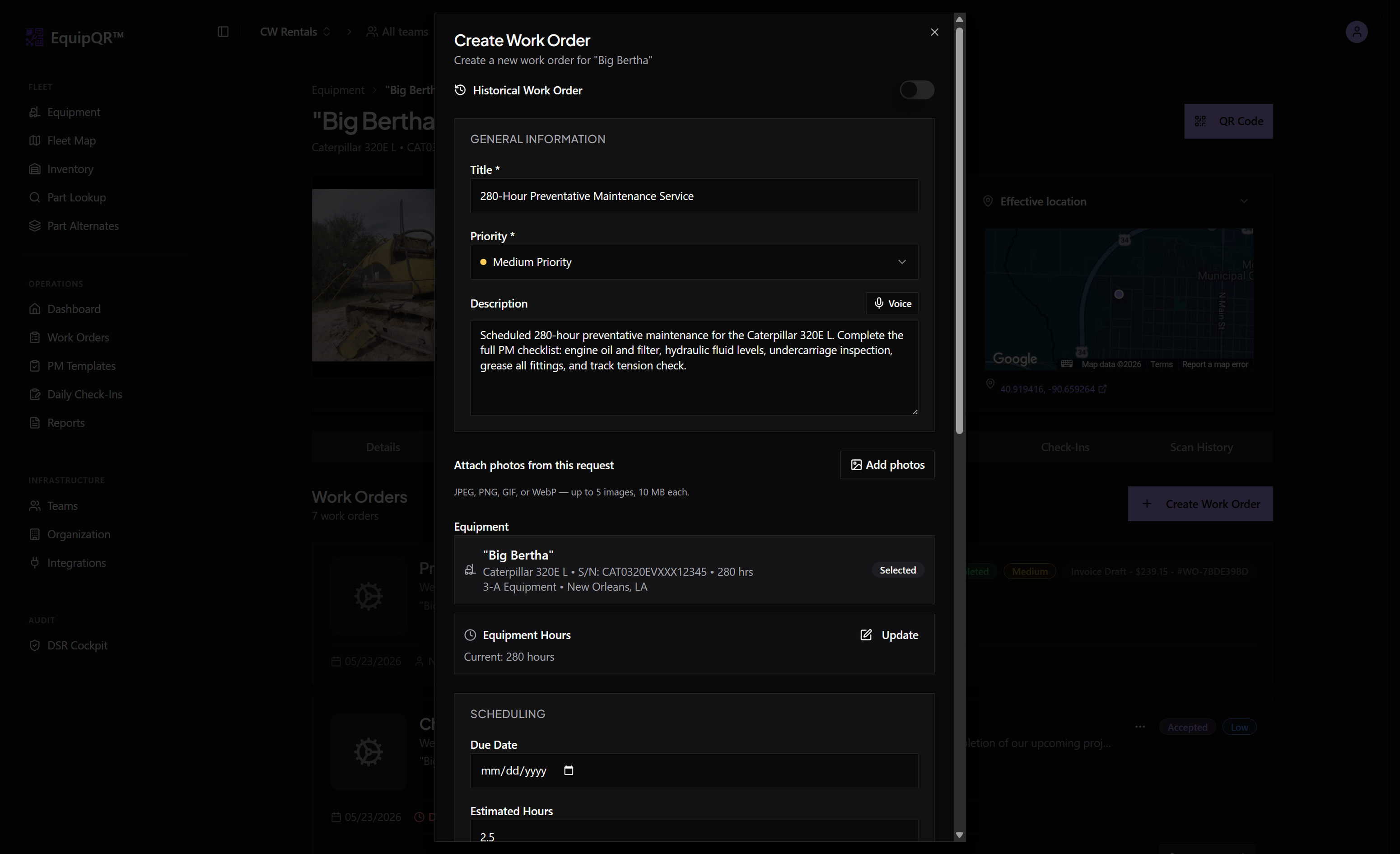
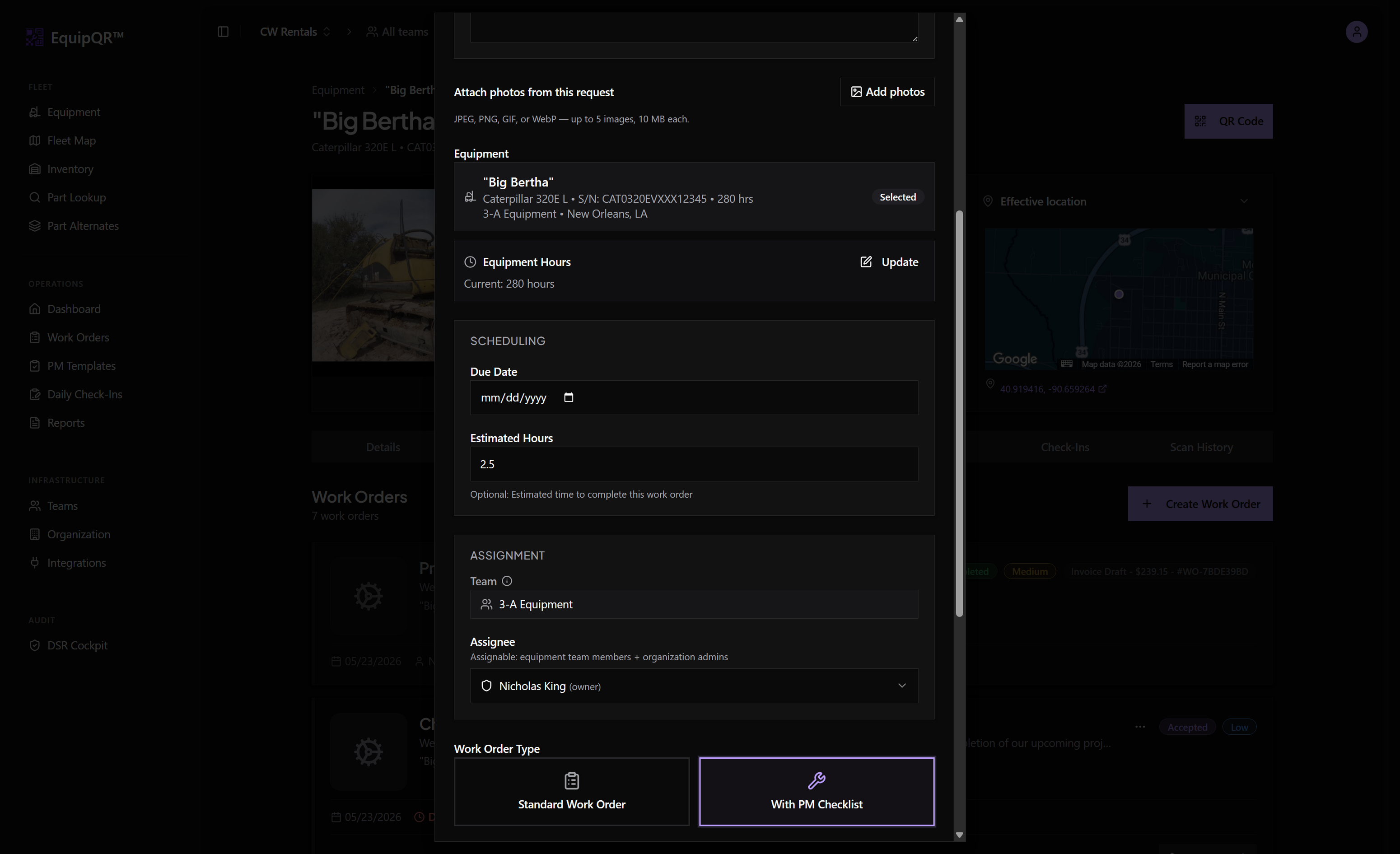
From the equipment page, open the Work Orders tab and click Create Work Order. Give it a clear title and description, assign a technician, and choose the equipment's PM template from the dropdown directly below the title (defaults to the assigned template when one exists).
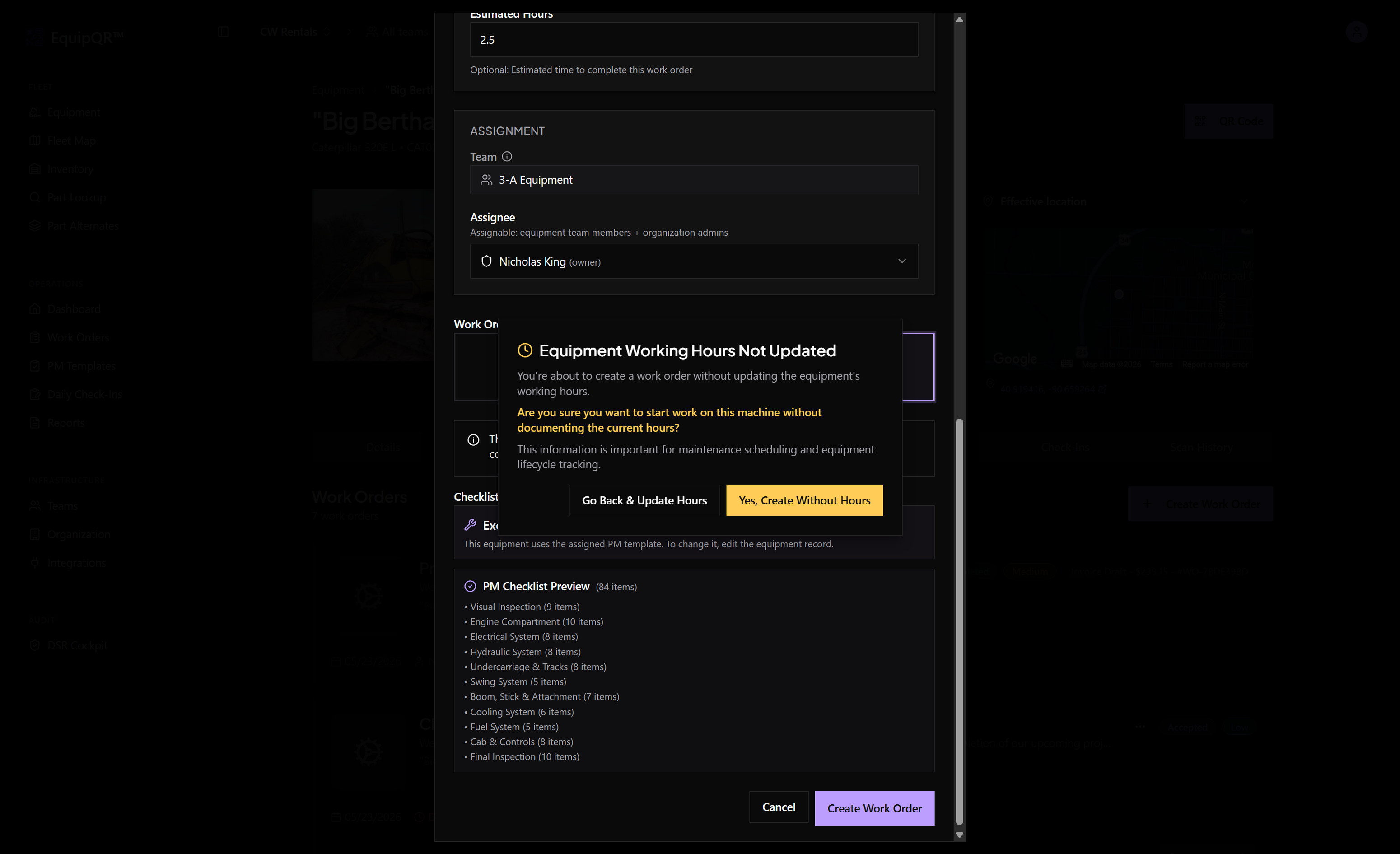
If you have not updated the equipment's working hours, EquipQR asks before creating:
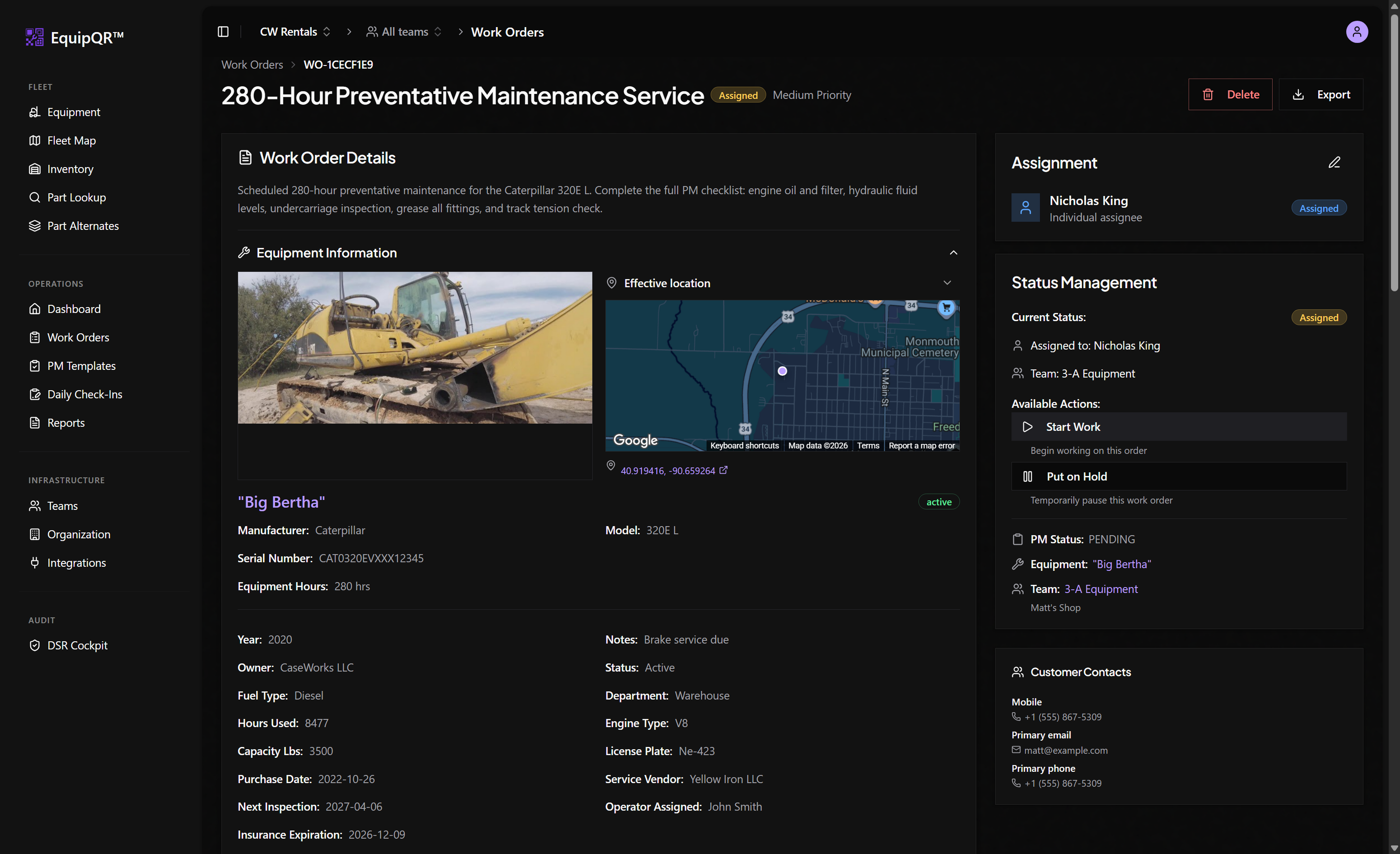
The new work order opens with the PM checklist attached and the customer's contacts in the sidebar.
2. Complete the PM checklist
Click Start Work, then work through the checklist sections. When the machine checks out, Set All to OK completes the remaining items in one step. Complete PM unlocks once every item is rated.
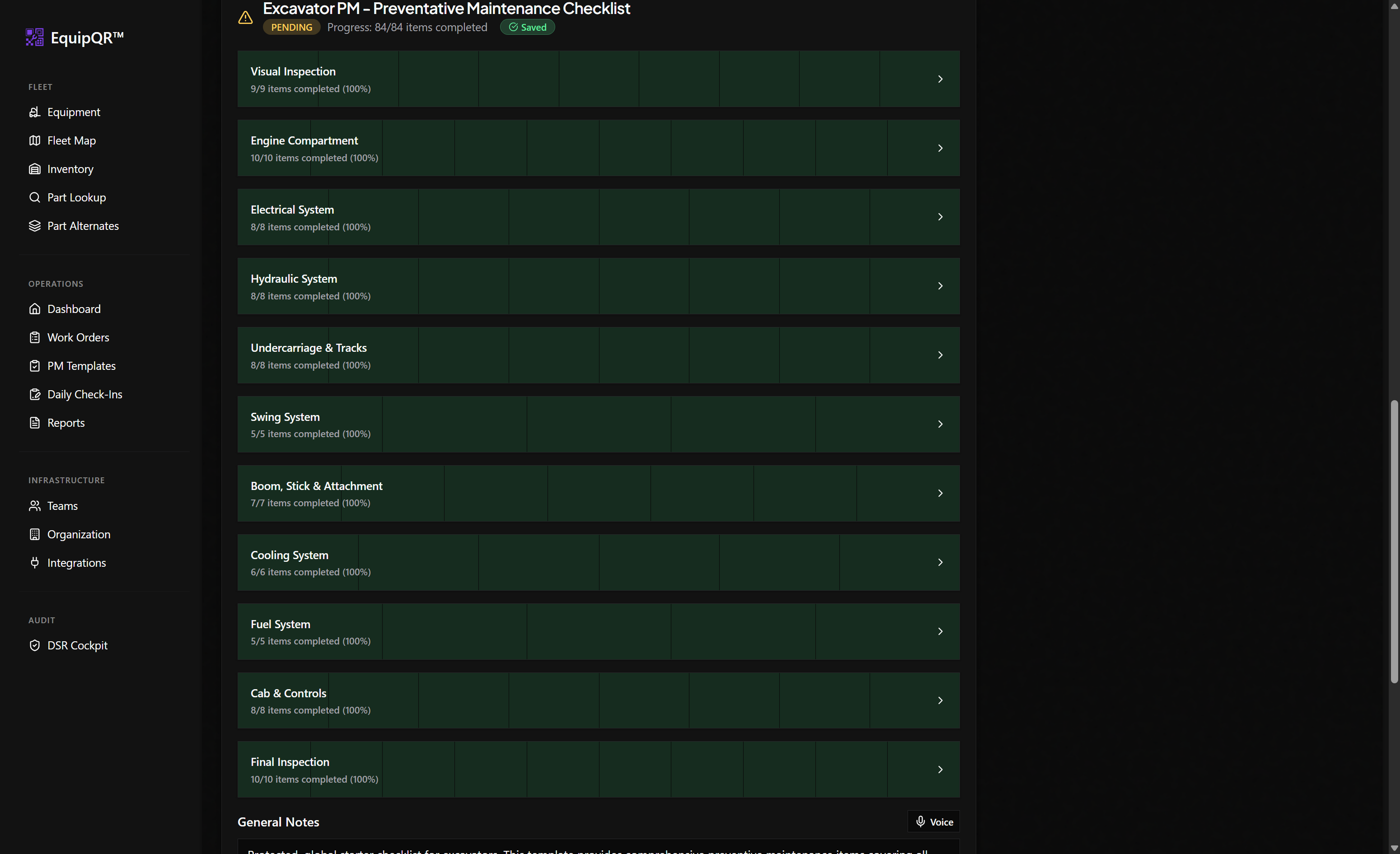
PM gate
A work order with a PM checklist cannot be completed until the PM itself is completed — the Complete action stays disabled until then.
3. Record billable costs
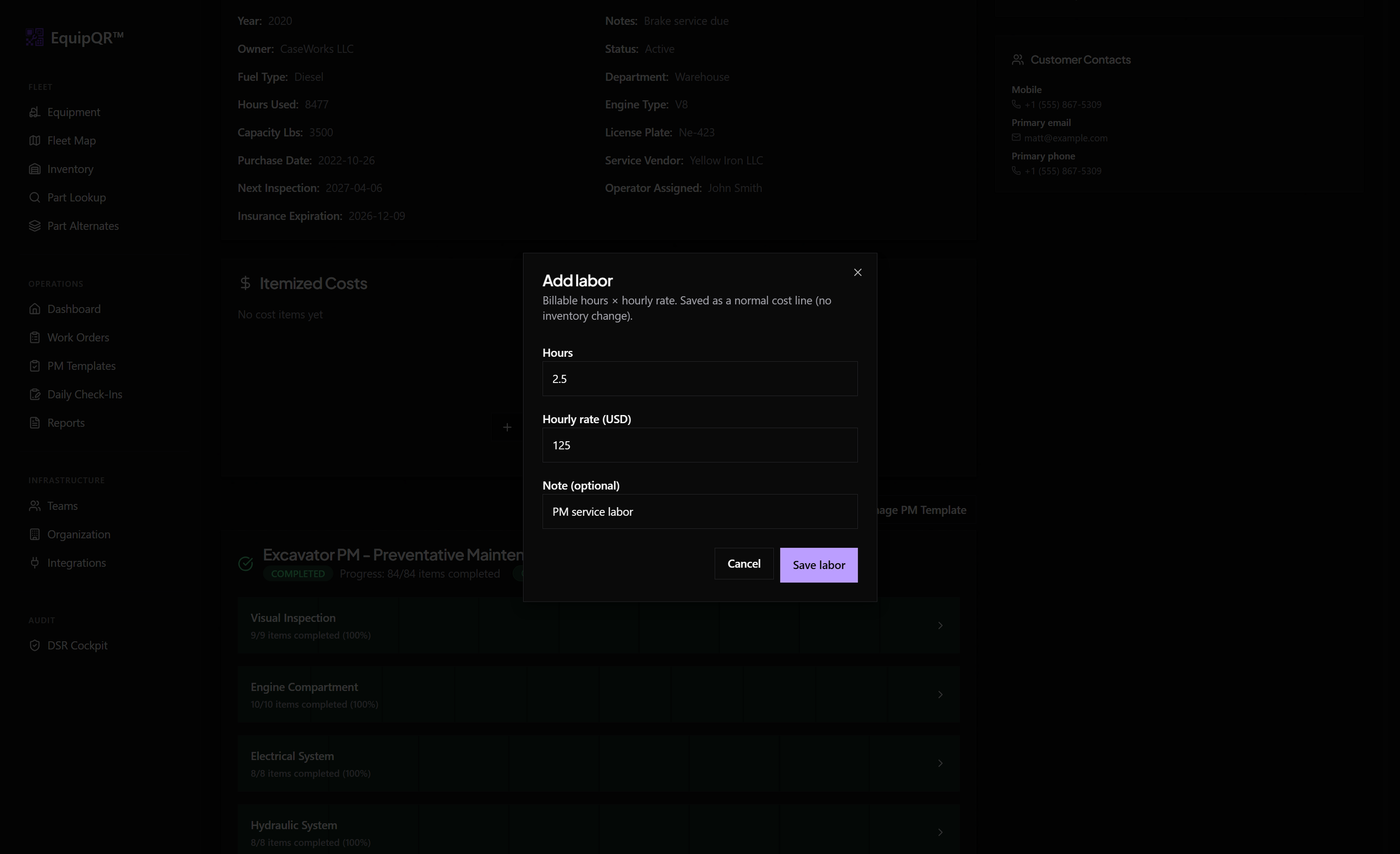
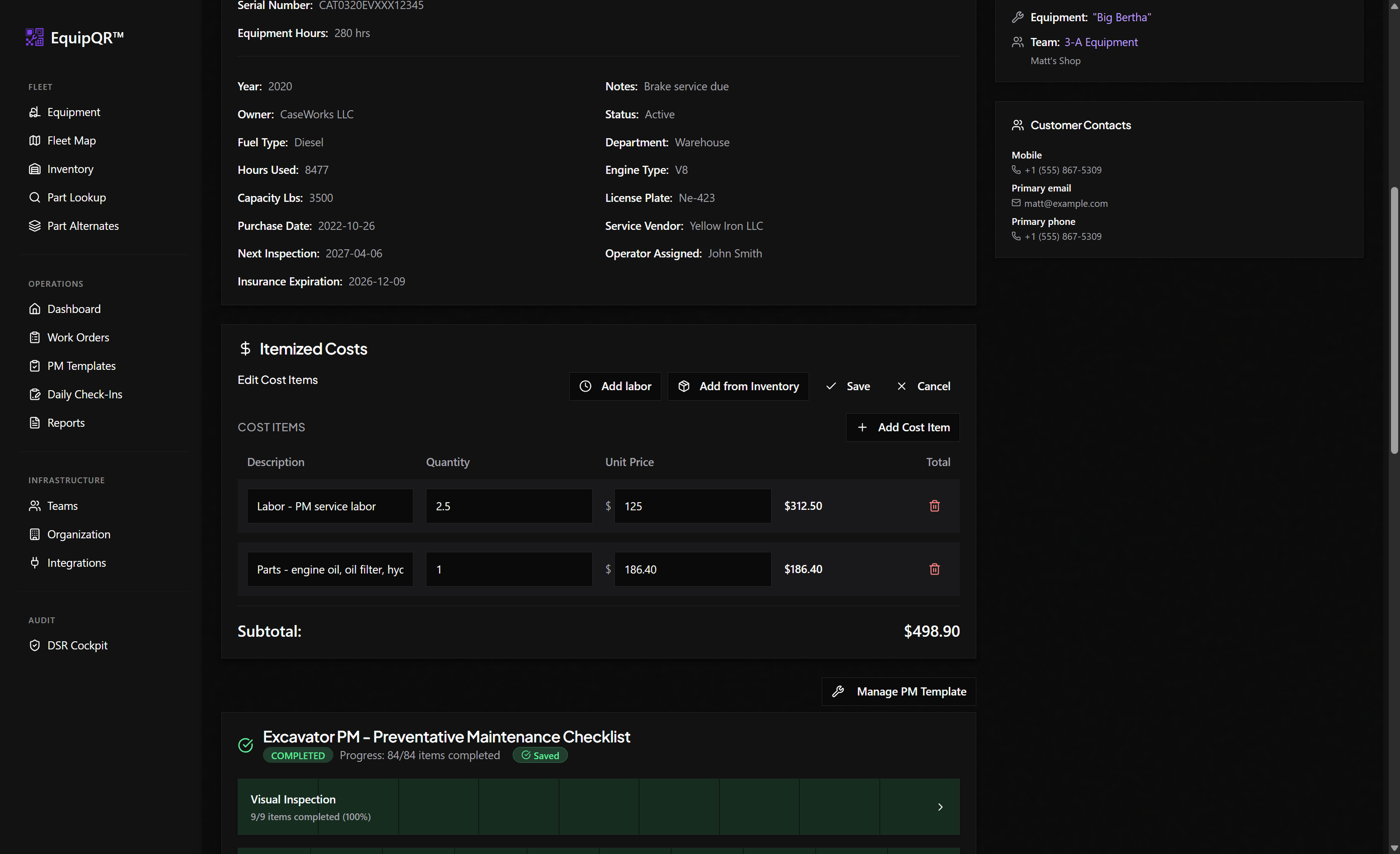
Use Add labor for billable hours × hourly rate, and Add Cost Item for parts and materials. These become the line items on the invoice, so finalize them before completing.
4. Complete the work order
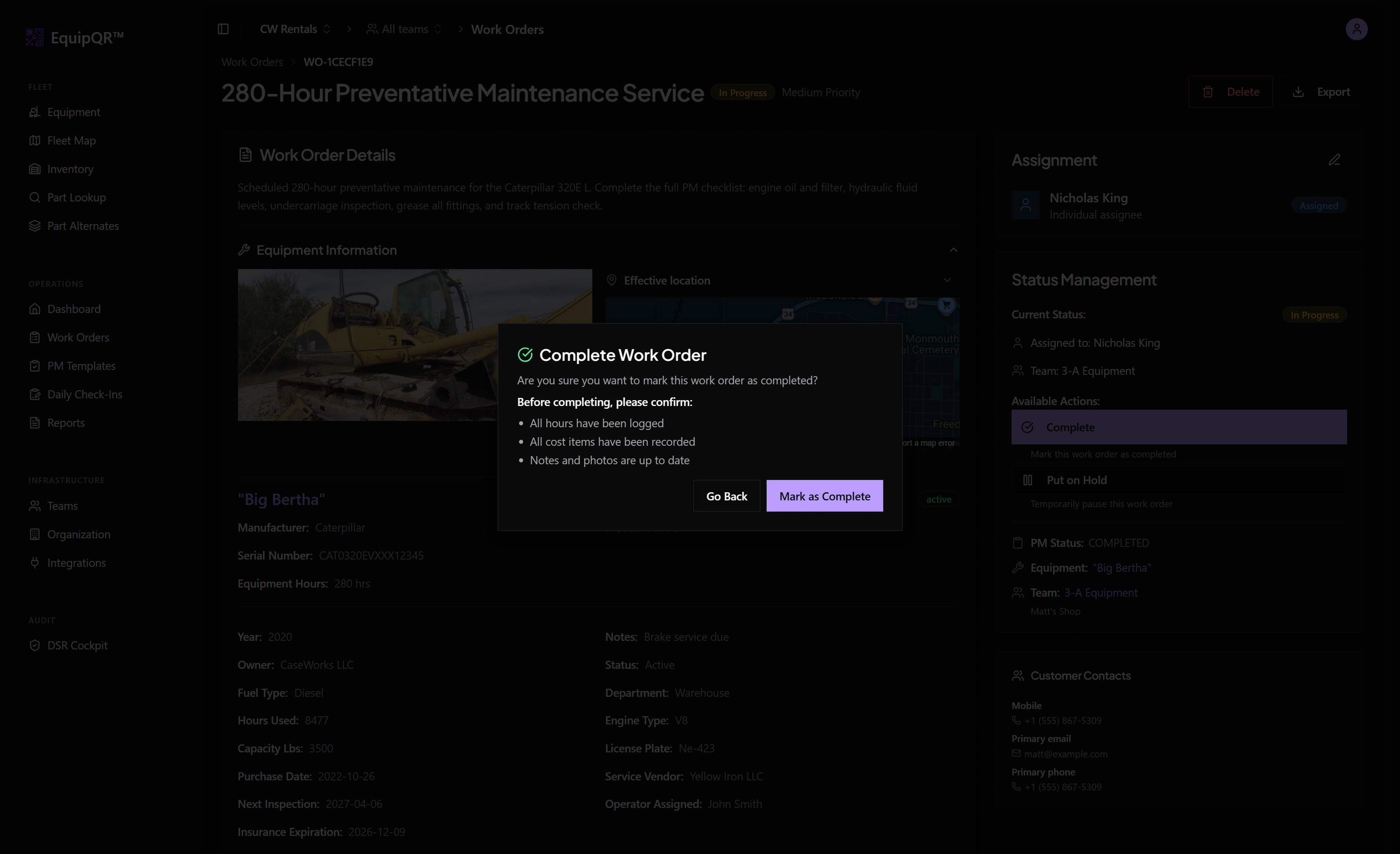
Click Complete and confirm. After completion, notes, images, and costs are locked.
5. Export → QuickBooks → Create New Invoice
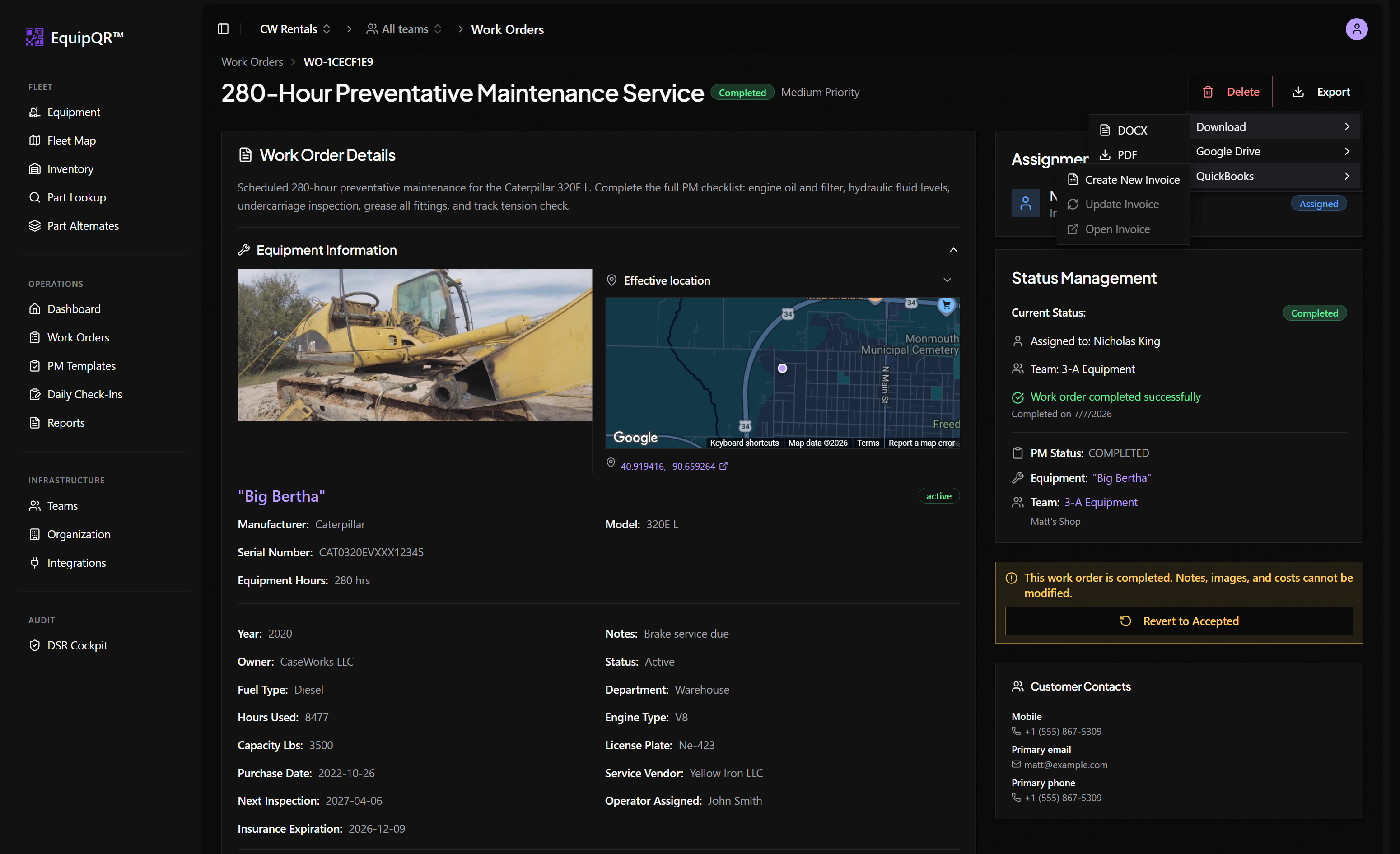
Open the Export menu in the work order header and choose QuickBooks → Create New Invoice.
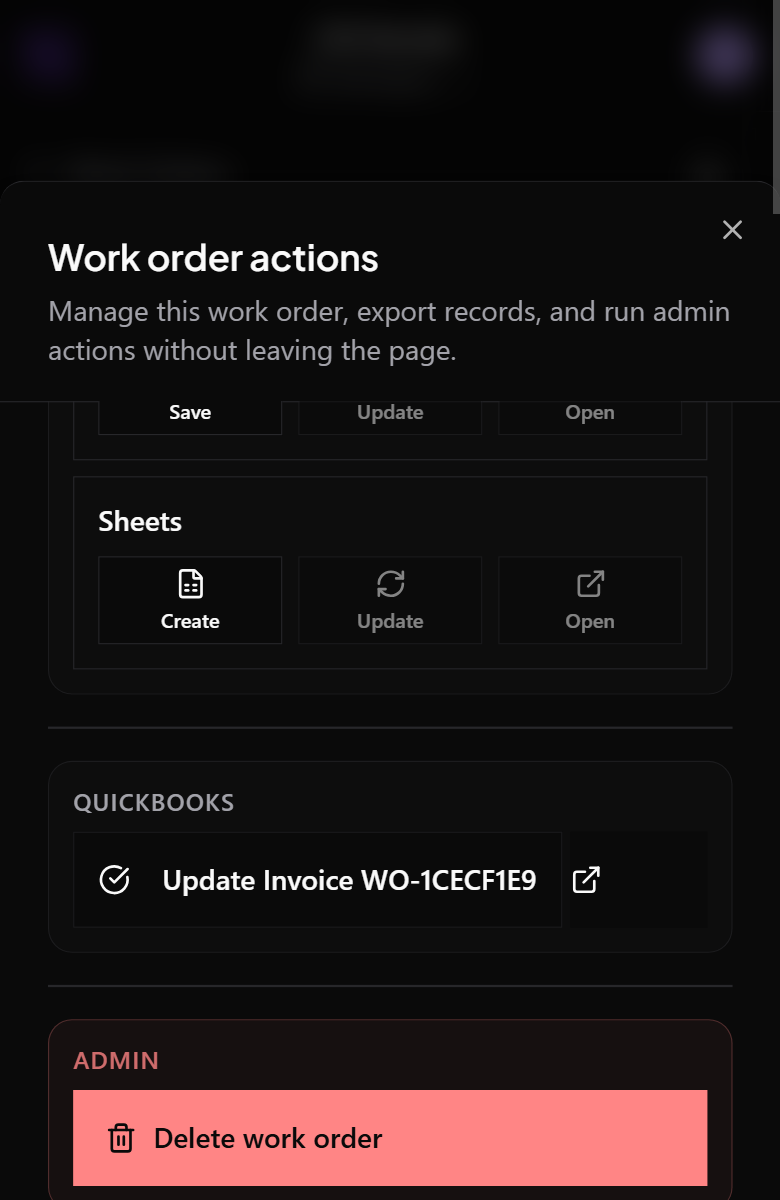
On mobile, the same actions live in the work order quick-actions sheet under QuickBooks:
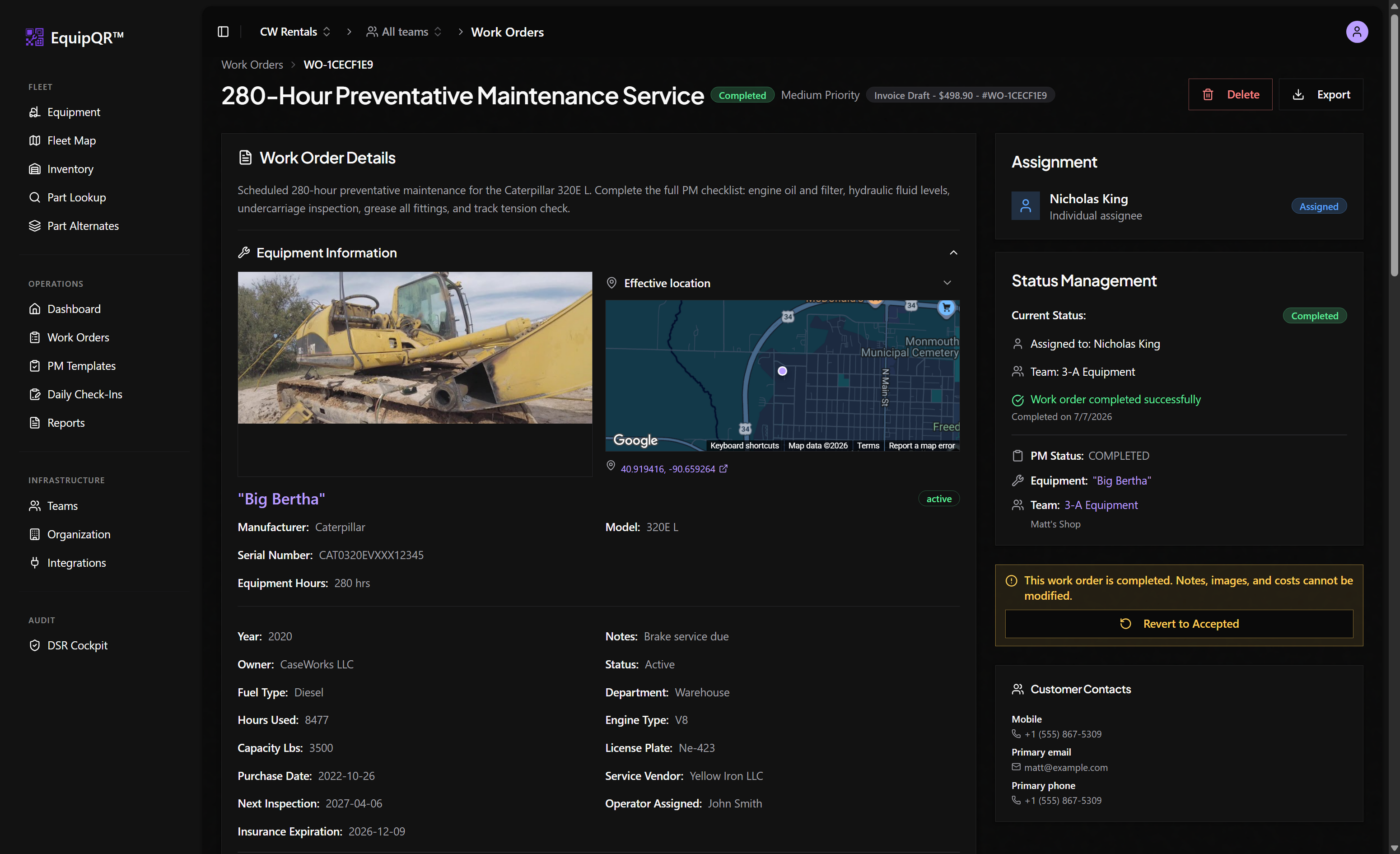
When the export finishes, the work order header shows an invoice badge with the draft total and invoice number:
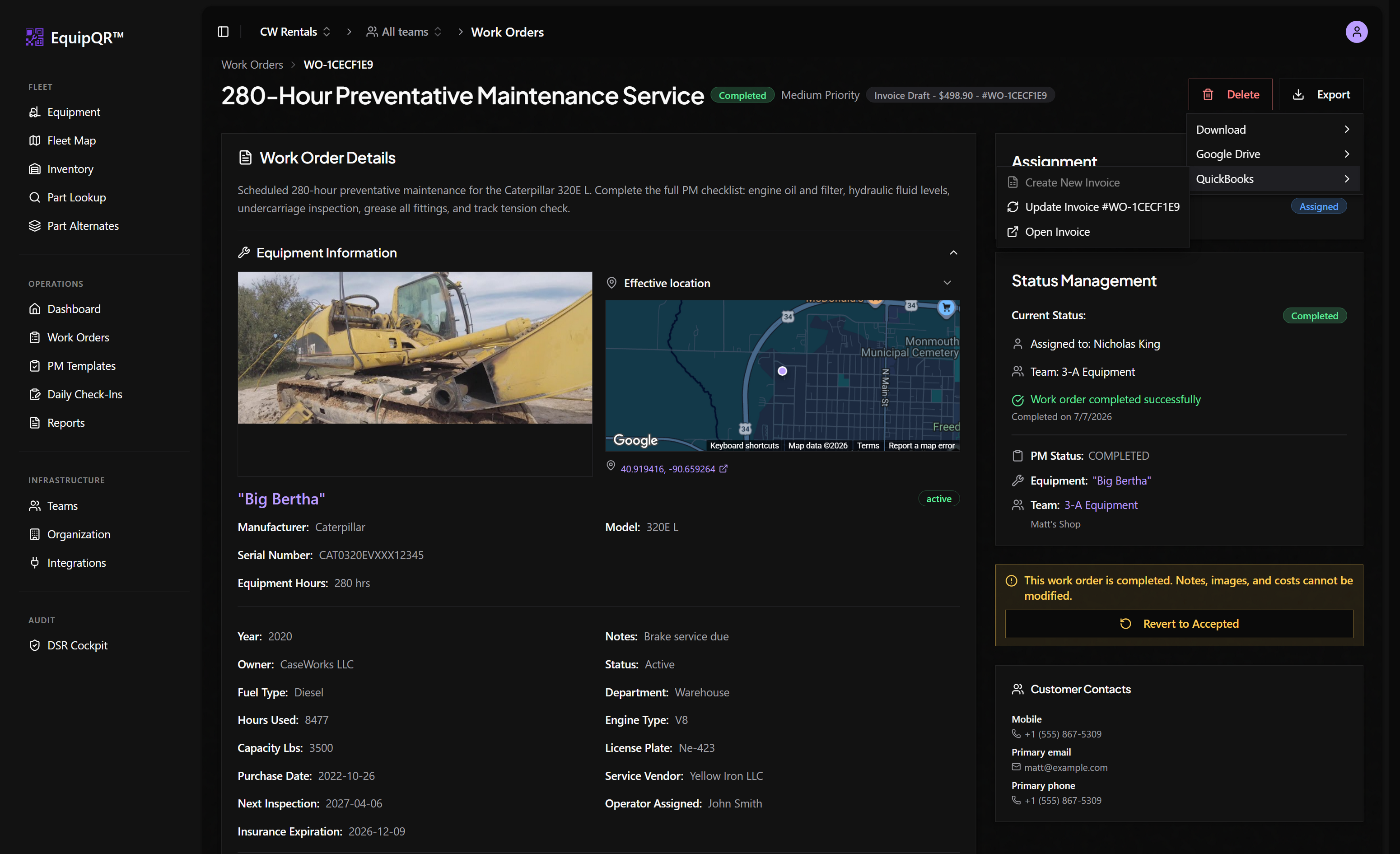
After the first export the QuickBooks submenu switches to Update Invoice #… and Open Invoice:
6. Review the draft invoice in QuickBooks
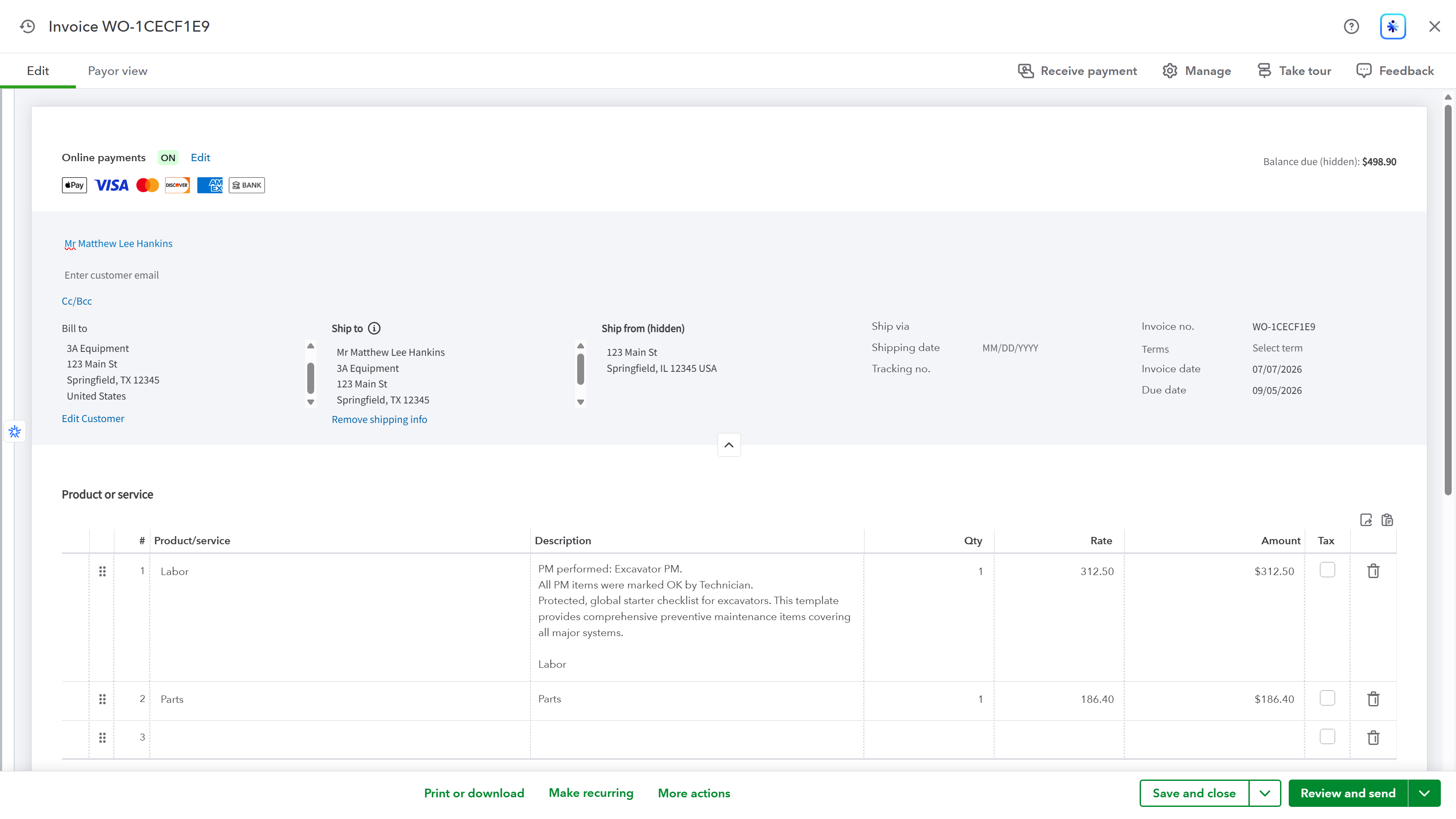
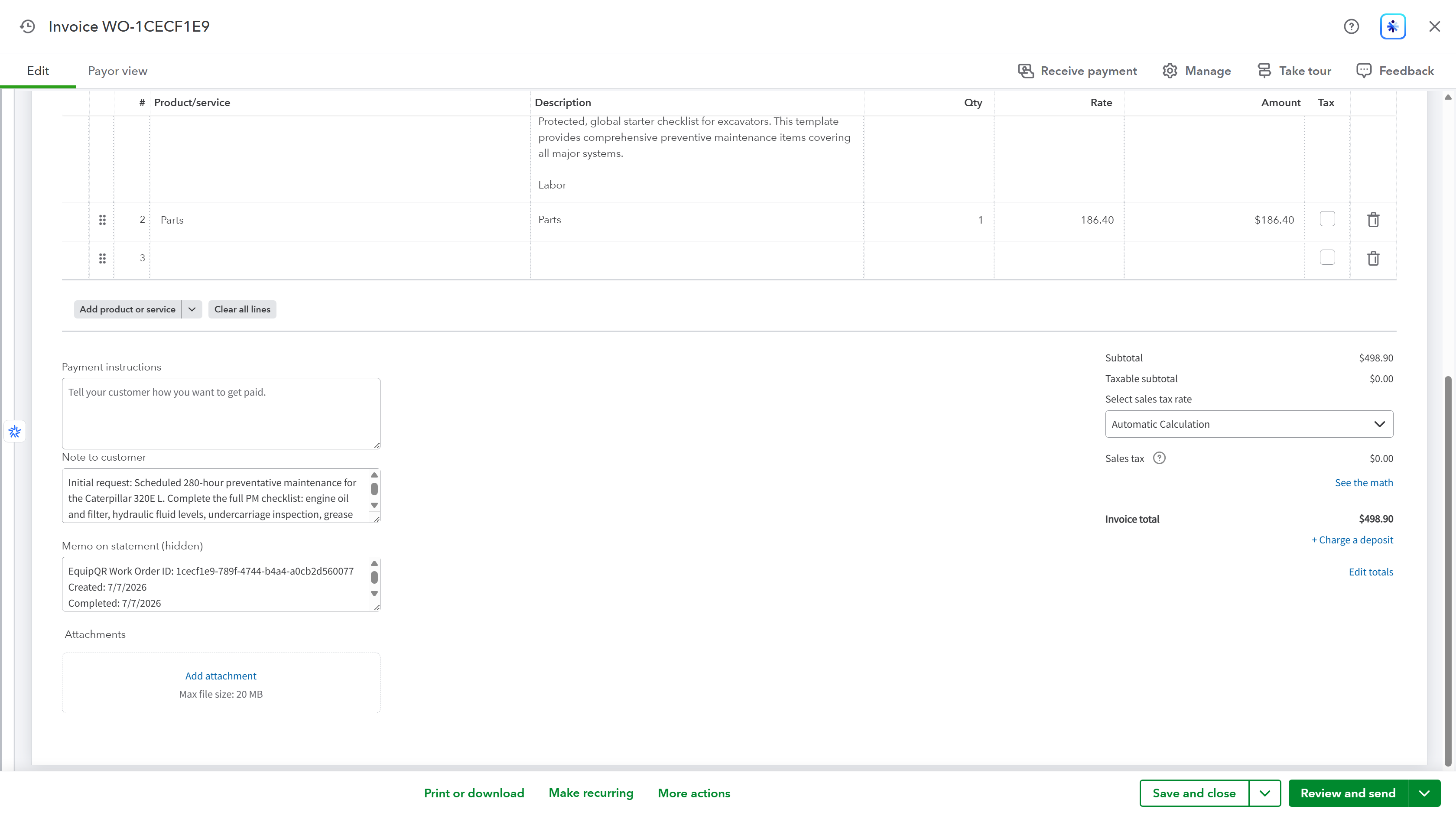
Open Invoice takes you straight to the draft in QuickBooks Online. EquipQR maps the work order like this:
| Work order data | Where it lands in QuickBooks |
|---|---|
| Labor cost lines | One Labor service line (summed) |
| All other cost lines | One Parts line (summed) |
| PM checklist summary + public notes | Description on the primary line |
| Status history + public notes | Customer-visible message |
| Full cost breakdown + private notes | Private note (not customer-visible) |
| Equipment make/model/serial/hours | Invoice custom field |
| Work order ID and dates | Memo on statement (hidden) |
| Customer tax status | Sales tax (automatic calculation, tax-exempt respected) |
Drafts only
EquipQR always creates a draft. You review and send from QuickBooks — nothing is emailed to your customer automatically. Once sent or paid, the invoice status (and balance) mirrors back onto the work order automatically.
7. Re-export if the work order changes
Update Invoice pushes the latest work order data to the same draft. Once you send the invoice in QuickBooks, a later export creates a new invoice rather than editing the sent one.
Troubleshooting
If the QuickBooks option is missing or disabled in the Export menu, confirm:
- QuickBooks is connected (Integrations page shows Connected).
- The work order status is Completed.
- The equipment is on a team whose customer account shows Linked for invoice export.
- You are an Owner/Admin or have been granted QuickBooks access on the Members page.