
For: Technician, Manager, Owner, Admin
Last reviewed: 2026-07-04
Requires
The work order must still be active — not Completed or Cancelled.
Technicians and managers can fix a wrong PM template without deleting the work order and re-capturing photos or notes. Work order photos, notes, costs, and status history stay attached when you change or remove the PM checklist.
1. Open the work order
From Work Orders, open the active job you need to update.
2. Start PM management
On the work order details page, choose:
- Add PM Checklist when the work order was created without PM, or
- Manage PM Template when a PM checklist is already attached.
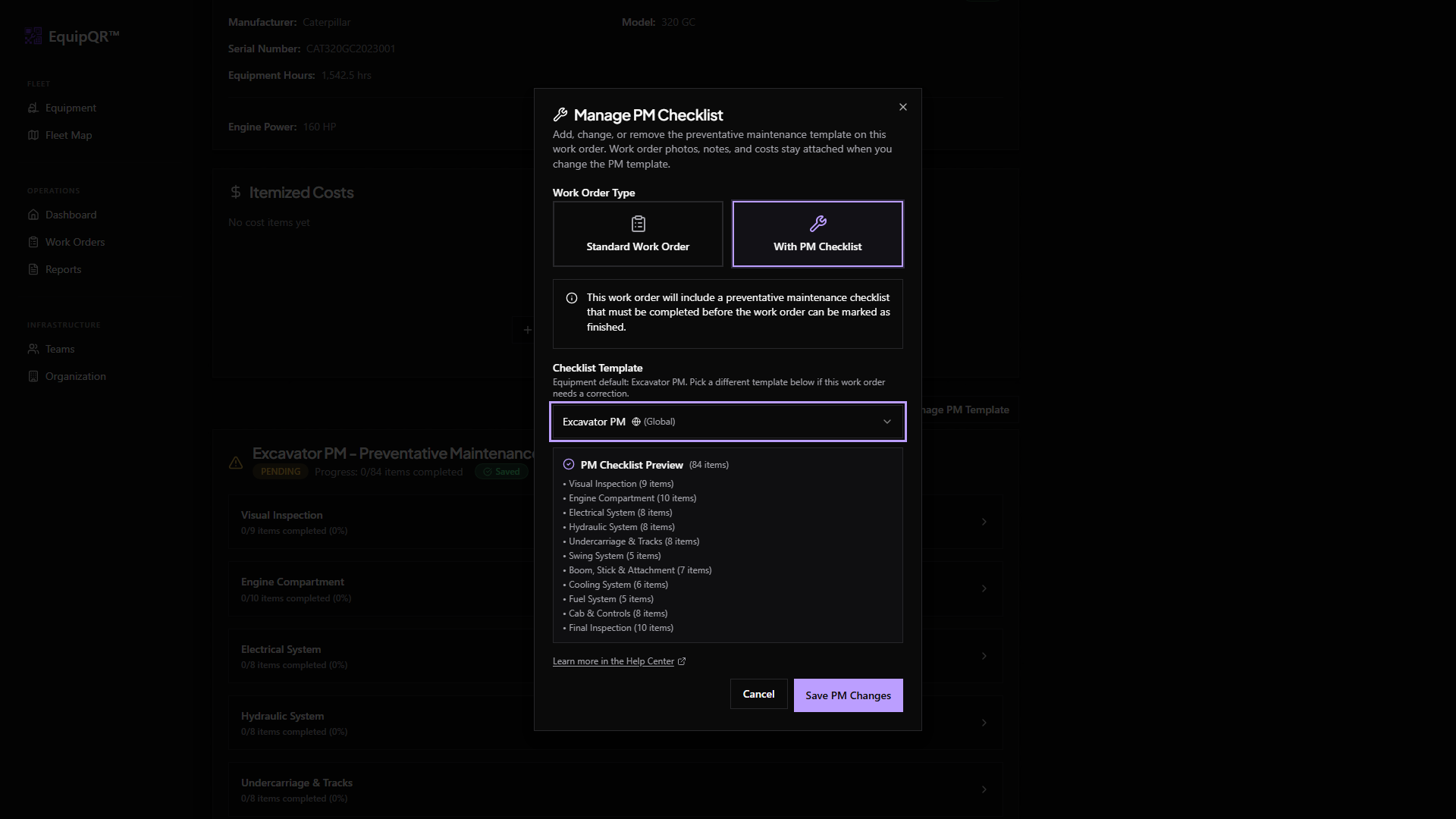
3. Add a PM checklist
- Pick the correct template from the PM template dropdown. If the equipment has a default template but this job needs a different one, you can override it here.
- Select Save PM Changes.
EquipQR creates the PM checklist and sets the work order to PM-enabled.
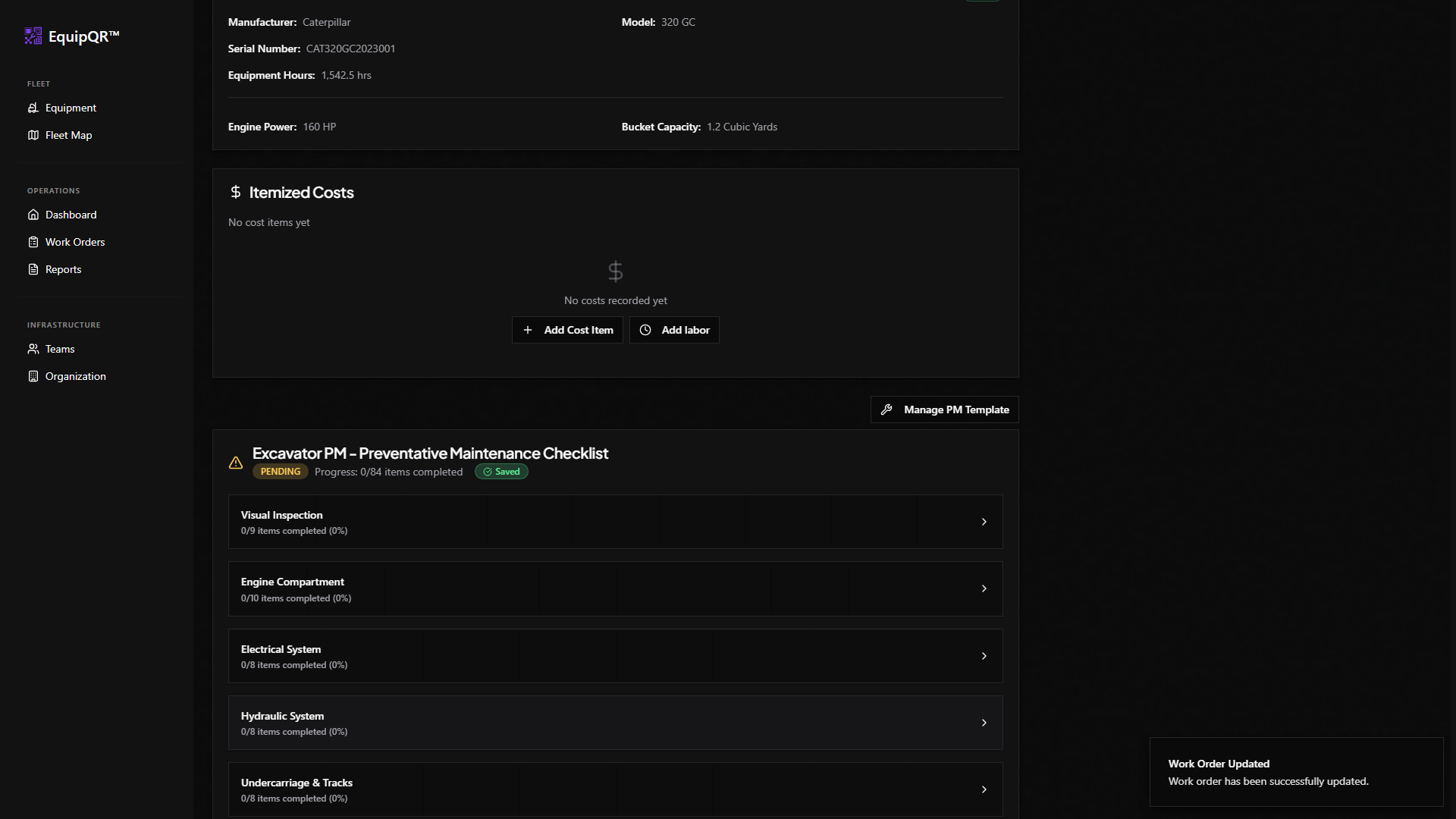
4. Change the PM template
- Open Manage PM Template.
- Select a different checklist template.
- Select Save PM Changes.
If the current checklist already has completed items or PM notes, EquipQR warns you before resetting the PM data. Only the PM checklist is replaced — work order photos and notes remain.
Before you change templates
Download the PM checklist PDF from the work order if you need a record of completed inspection items.
5. Remove the PM checklist
- Open Manage PM Template.
- Set PM template to None (or use the clear control next to the dropdown).
- Select Save PM Changes.
The PM section disappears from the work order. Notes, photos, and costs stay on the work order.
Who can manage PM templates
| Role | Add / change / remove PM on active work orders |
|---|---|
| Owner / Admin | Yes |
| Manager / Technician (team member) | Yes |
| Requestor / Viewer | No |