
For: Admin, Owner, Manager, Technician
Last reviewed: 2026-07-04
Requires
Owners and Admins can add any equipment. Managers and Technicians can add equipment to teams they belong to.
1. Navigate to Equipment
From the sidebar, select Equipment. The list shows every machine you have access to across your teams.
2. Click Create Equipment
The form opens with the organization pre-selected. For bulk imports, use the Bulk Equipment page instead.
3. Fill in basic information
- Name — descriptive, e.g. "Excavator #42".
- Make and Model — e.g. Caterpillar 336F.
- Serial Number — important for warranty and parts lookup.
4. Assign it to a team
Pick the team that services this machine. Team assignment decides who can see, edit, and run work orders against it. Only Owners and Admins can create equipment without a team assignment.
5. Set status and location
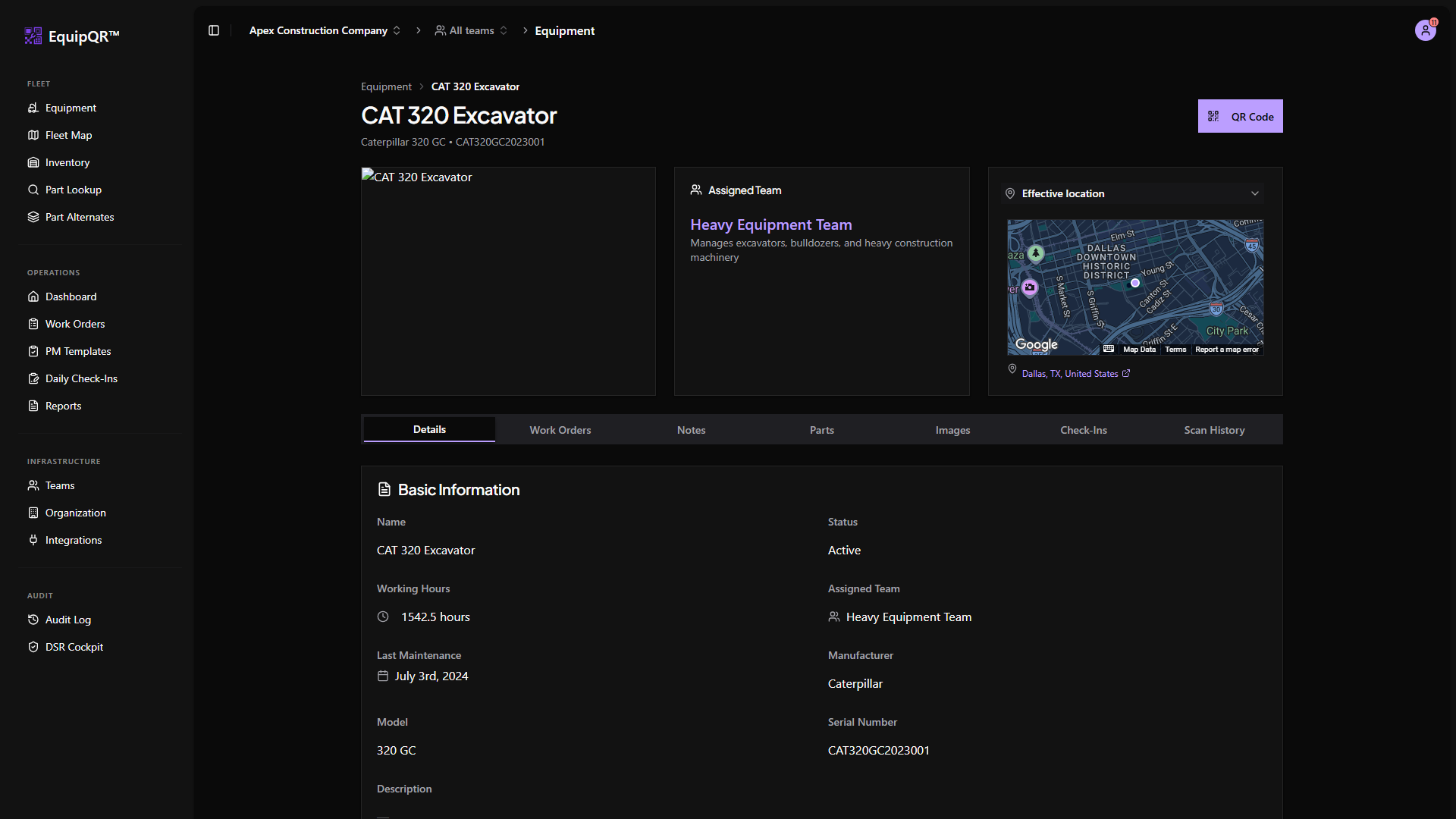
Choose an initial status (Available, Offline, etc.). After the record is created, use the Location map card on the equipment detail page to set an assigned address, capture live GPS, or preview team and scan sources. See Equipment location sources and maps for the full workflow.
6. Save
Click Create Equipment. You land on the new equipment's detail page, ready to generate and print its QR code.