
For: Technician, Manager
Last reviewed: 2026-07-06 Notes and photos are the audit trail for every work order. Images you upload on a work order also appear in the equipment's Images tab, so the next technician can see the previous condition.
1. Open the work order
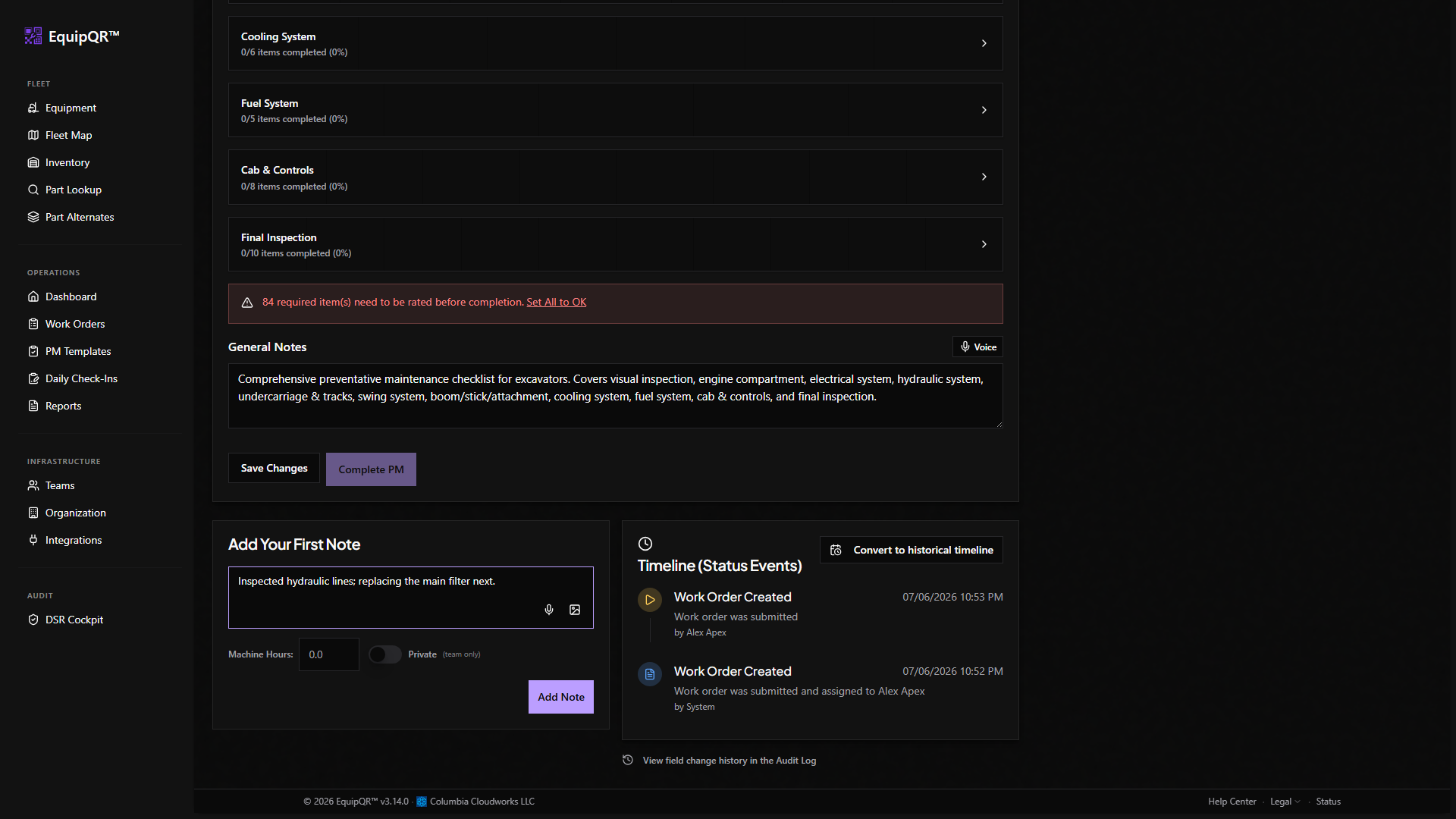
Scroll down to the Notes section under the work order details.
2. Fill in note details
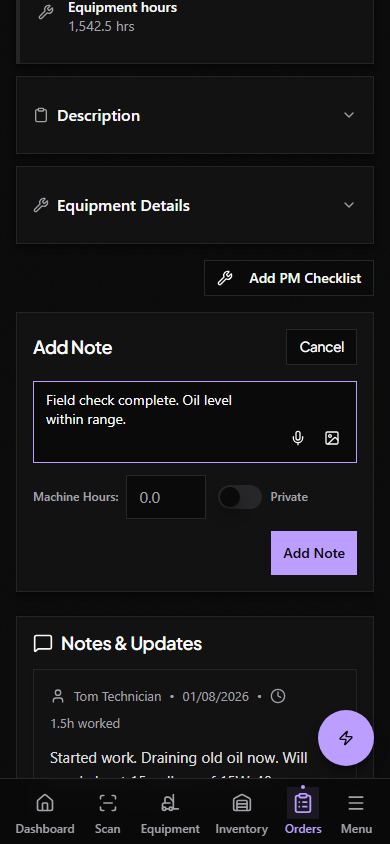
- Note content — what you found, what you did, and any important observations.
- Hours worked — time spent on this session.
- Private note — toggle on for internal-only observations. Customers (Requestors and Viewers) cannot see private notes.
3. Attach images
In the Images (Optional) section, tap Choose Files and pick one or more photos. You can upload up to 10 images per note. Supported formats: JPG, PNG, GIF, WebP. Maximum 10 MB per file.
4. Save the note
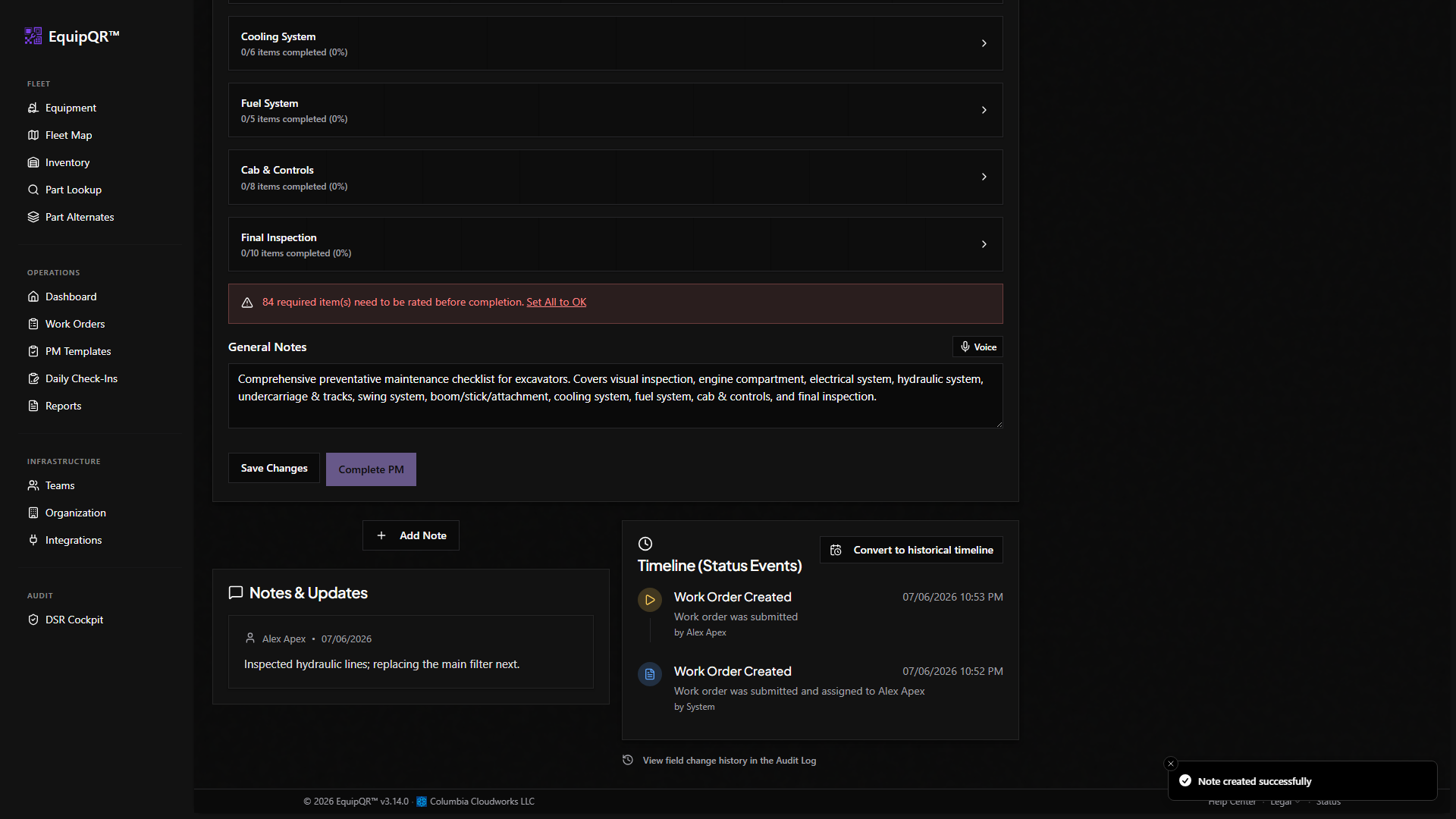
Tap Add Note (or Upload X Images when photos are attached) to save. The note appears immediately in the Notes & Updates list.
Note
If an upload fails, check the file size and your network. Supabase retries briefly but will surface a clear error if the upload cannot complete.