
For: Technician, Manager
Last reviewed: 2026-07-06 Work orders follow a predictable lifecycle so everyone can see what is actually happening in the shop. Only valid next statuses are shown on the action buttons, so you cannot accidentally skip a state.
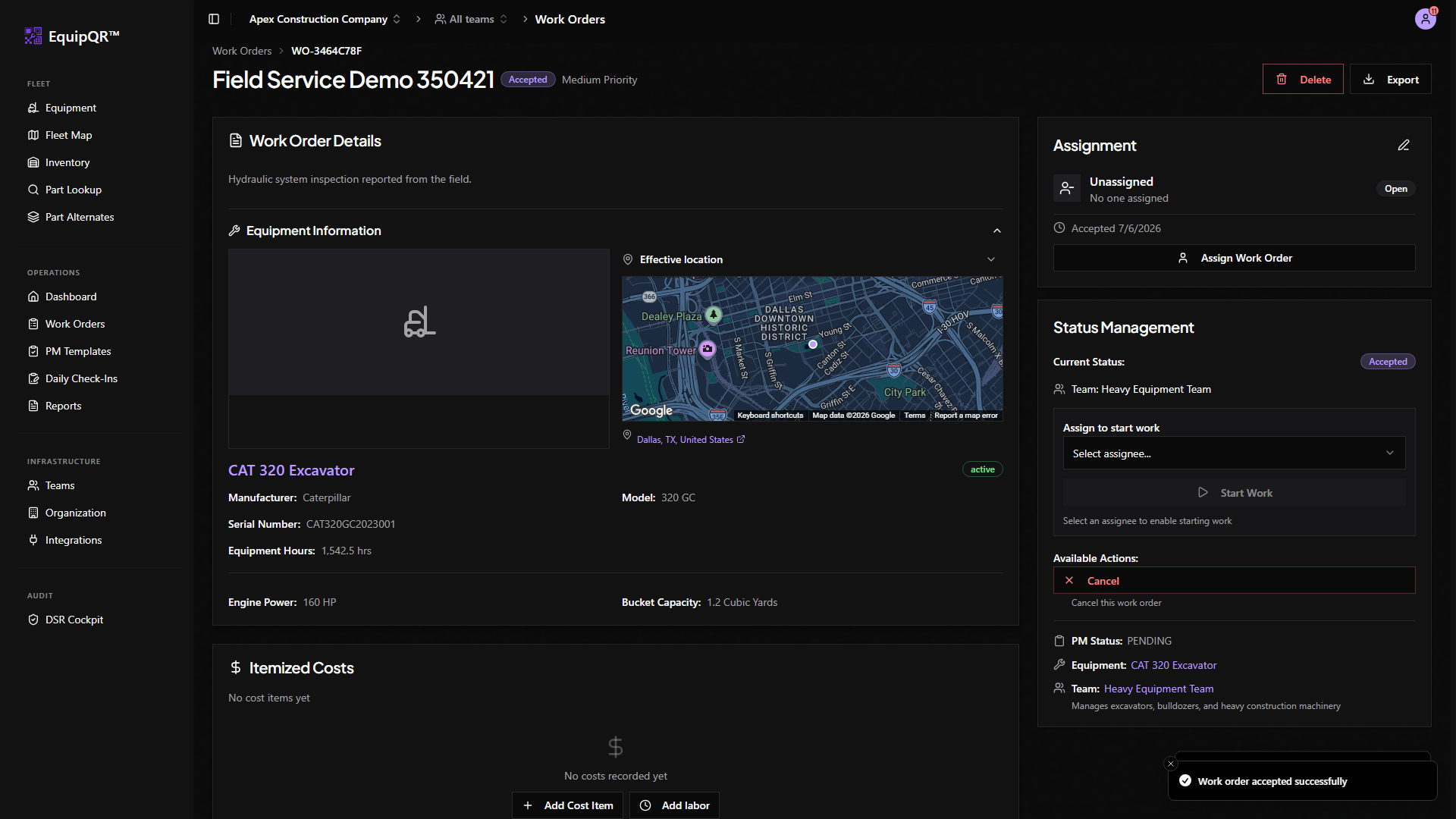
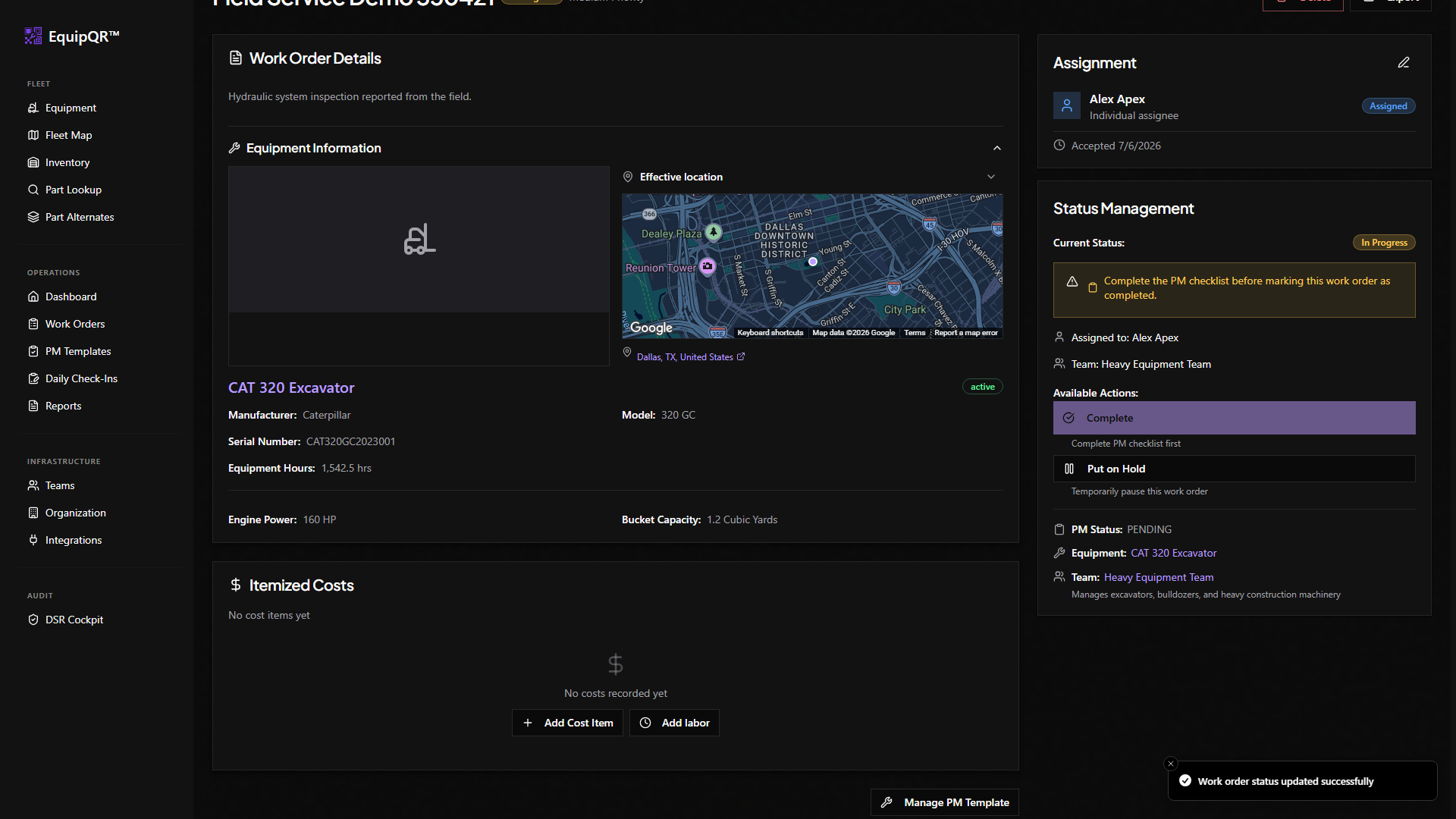
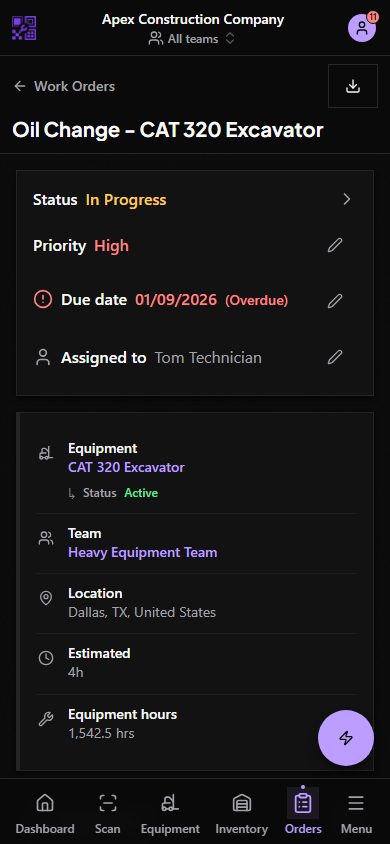
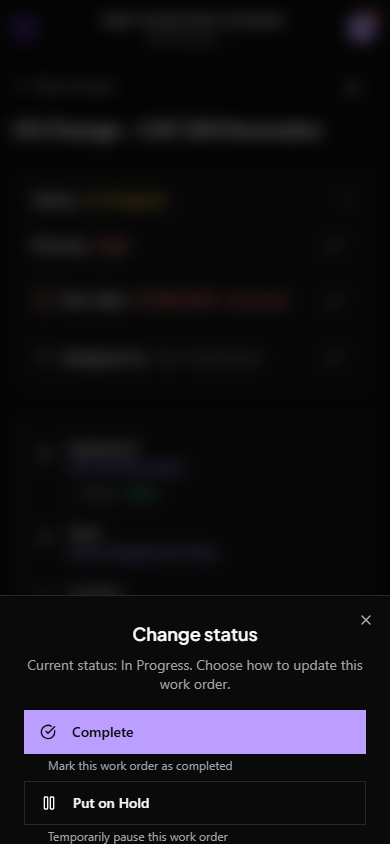
1. Open the work order details page
Tap a work order from the list, from equipment, or from your dashboard to get to the detail view.
2. Use the status action button
The top-right status card shows the current status plus only the valid next actions — e.g. Accept, Assign, Start Work, Put On Hold, Complete, or Cancel.
3. Who can change what
- Managers, Admins, and Owners can change status on any team work order.
- Technicians can move their own assigned work orders between In Progress, On Hold, and Completed.
- Requestors cannot change status after submission.
4. Mark it Complete when the work is done
Completion captures the close-out date automatically. If you are waiting on parts, use "Put On Hold" instead so the job does not register as overdue.