
For: Admin, Owner
Last reviewed: 2026-07-06
Requires
Organization Owner or Admin.
EquipQR uses a two-step onboarding: first users join yourorganization, then you add them to a team. Members cannot see equipment until they belong to a team.
1. Open Organization → Members
From the sidebar go to Organization, then select the Members tab.
2. Click Invite Member
Enter the person's work email address. Double-check the address — invitations are valid for 7 days and bounces are common on personal inboxes.
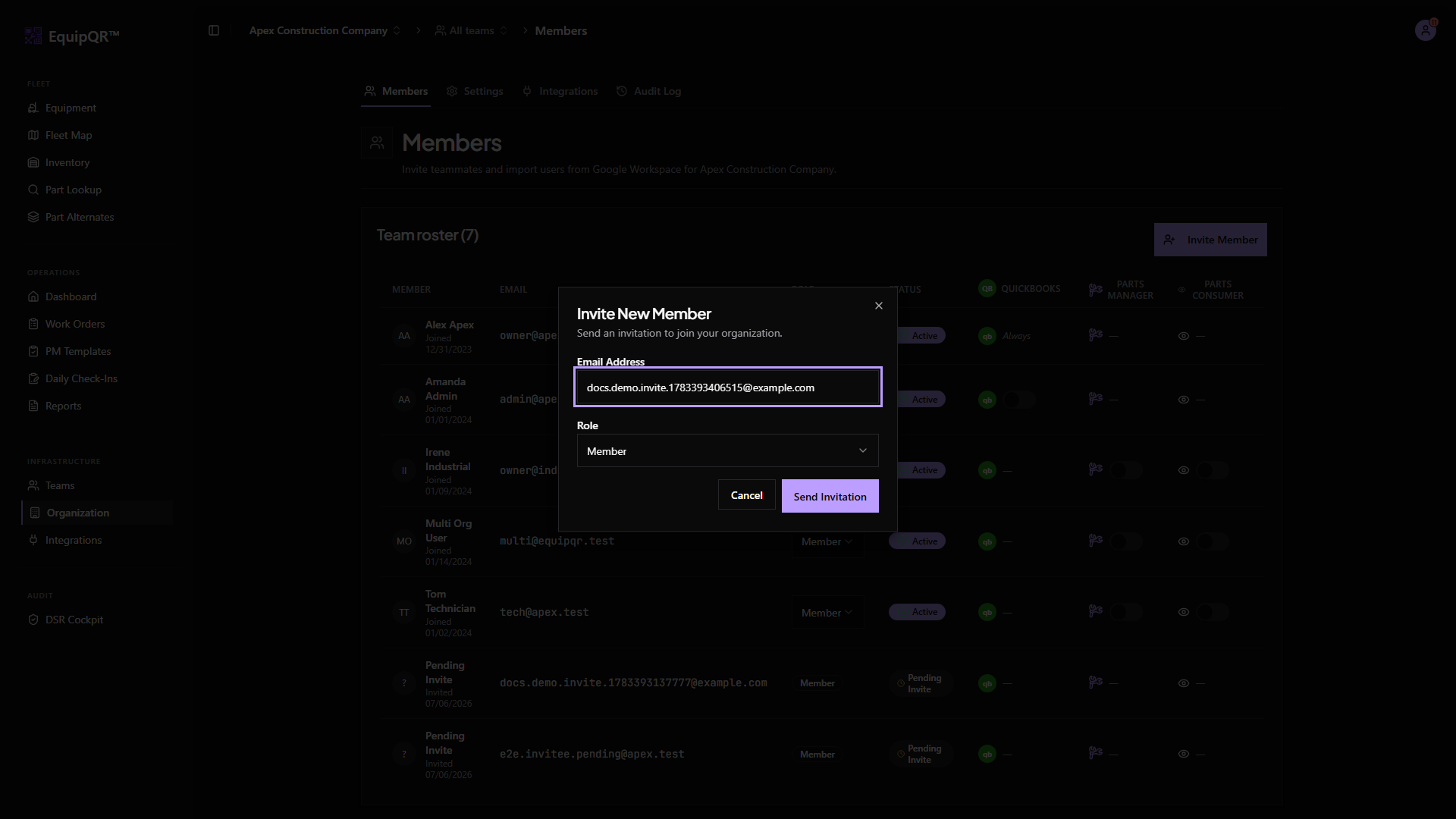
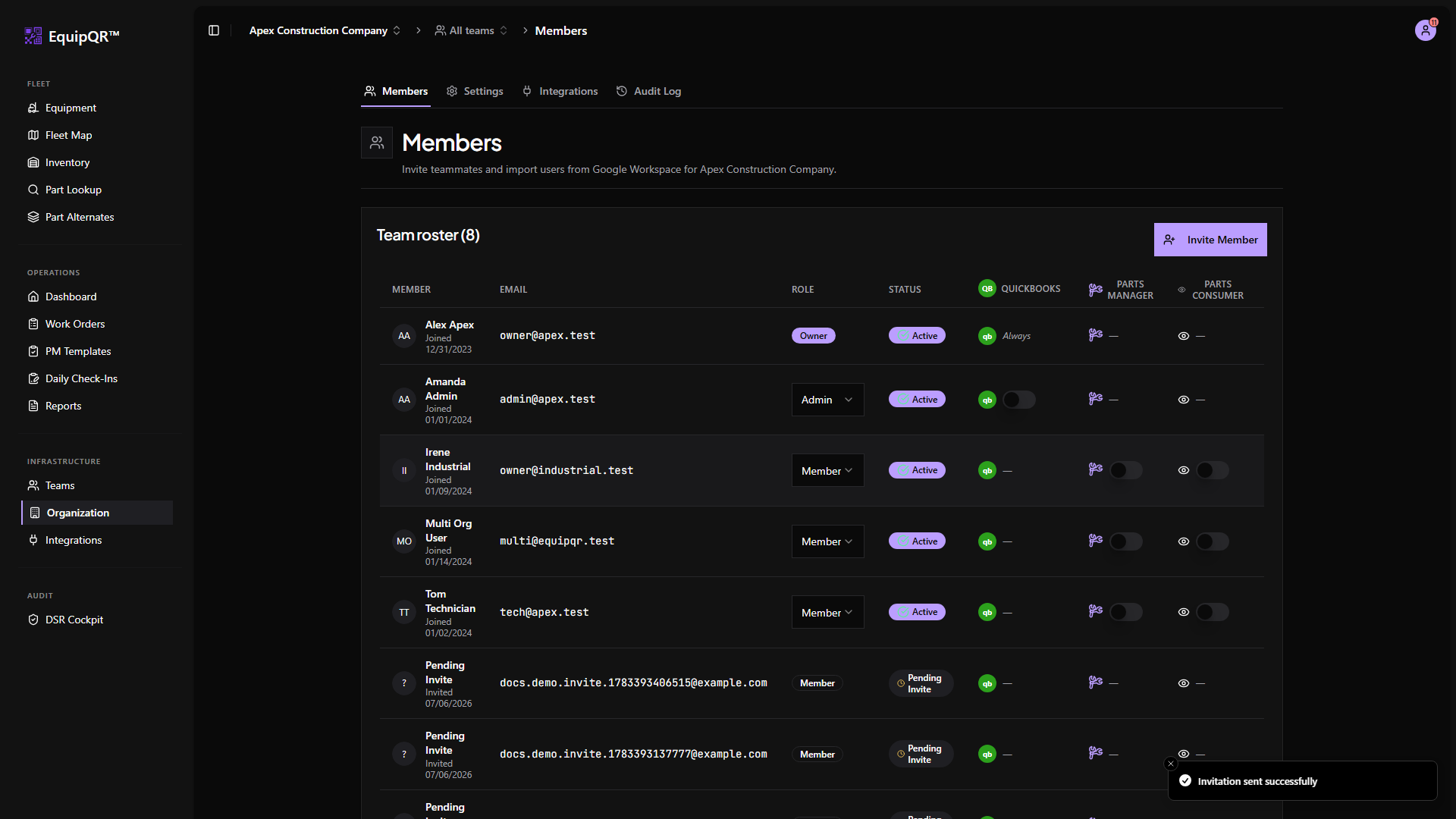
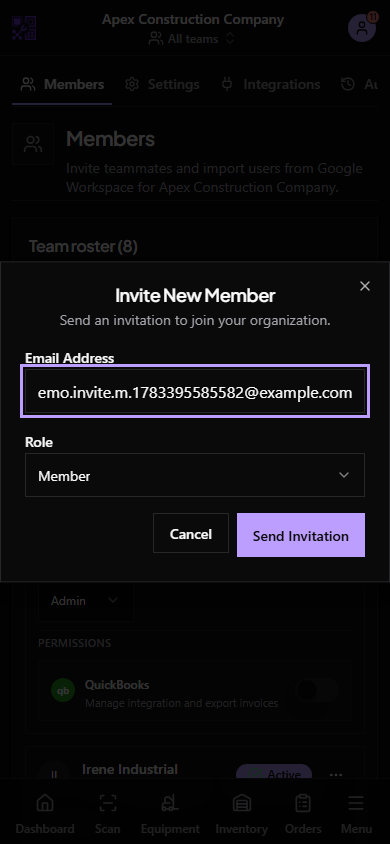
3. Pick the organization role
- Admin — manage members, teams, equipment, and integrations across the whole organization.
- Member — a staff account that inherits access from the teams it joins. Members cannot see any equipment until they are added to a team.
4. Add the user to a team
Go to Teams, open the team that services the equipment this person will work on, and click Add Member. Choose the team role that matches their responsibilities (Manager, Technician, Requestor, or Viewer).
5. Tell your teammate what to expect
Their invitation email comes from:
- Sender: EquipQR invite@equipqr.app
- Subject: "You're invited to join [Your Organization] on EquipQR"
- Link expires: 7 days after it is sent.
Note
If the invite does not arrive in 5-10 minutes, ask them to check spam before you resend.