
For: Technician, Manager, Admin, Owner
Last reviewed: 2026-07-06
Requires
Available on phones (small screens). Actions respect your normal permissions.
On mobile, EquipQR consolidates each page's contextual actions behind one quick access button so you are not hunting through menus with one hand on a ladder.
Equipment details
Tap the round QR button in the bottom-right corner of an equipment record to open the quick actions drawer:
- QR codes — show the equipment scan QR, plus one entry per enabled daily check-in checklist so you can hand an operator the right code.
- Work orders — start a new work order pre-linked to this machine; pick a PM template from the dropdown below the title, or leave it as None.
- Notes — jump straight to note capture.
Work order details
Work orders keep field tools (status moves, note, photo, timer) in the bottom action tray. The Quick actions button in that tray — or the round lightning button when the tray is hidden — opens a drawer with:
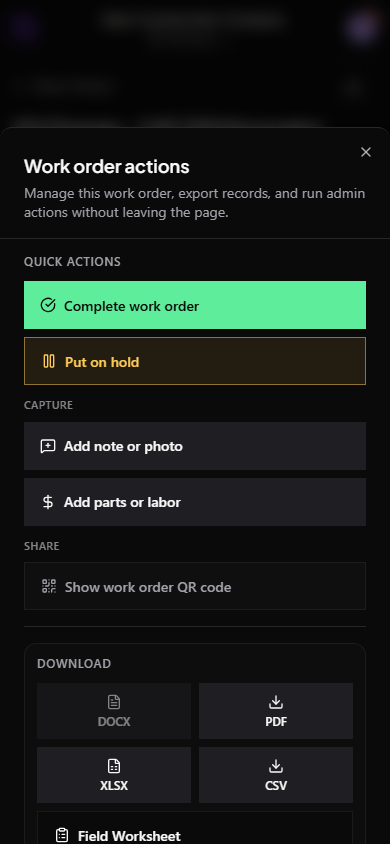
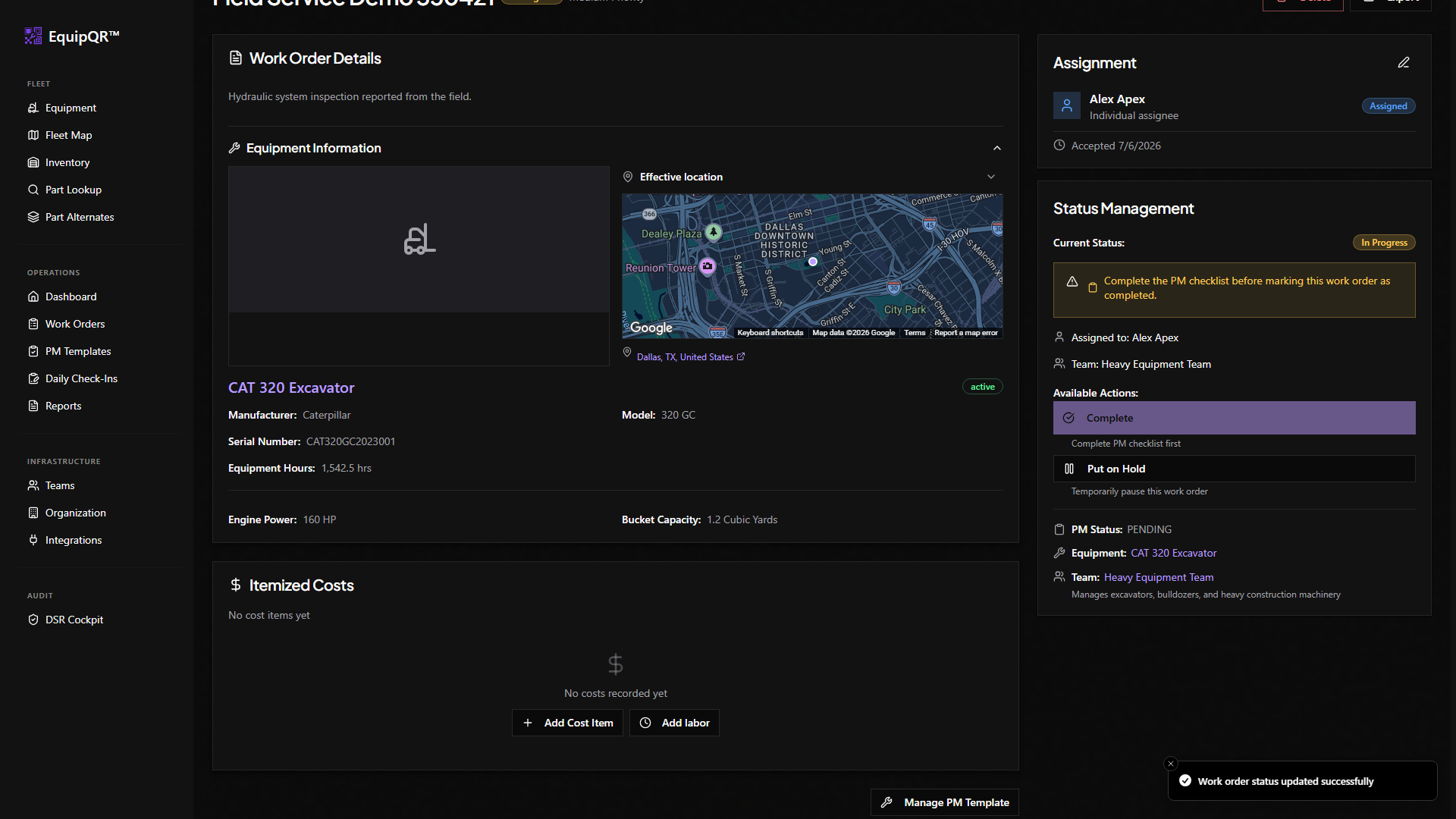
- The next relevant status action for this work order (accept, start work, complete, resume, or continue checklist).
- Add note / add photo shortcuts.
- Show work order QR code — display the QR so another device can open this work order instantly, or print the field worksheet.
- Exports — PDF, spreadsheet, and document downloads, plus Google Drive and QuickBooks options when those integrations are connected (grouped into their own sections).
Lists still have their add buttons
Equipment, work order, and inventory lists keep their round + button for creating new records — quick actions drawers only appear on detail pages where context matters.